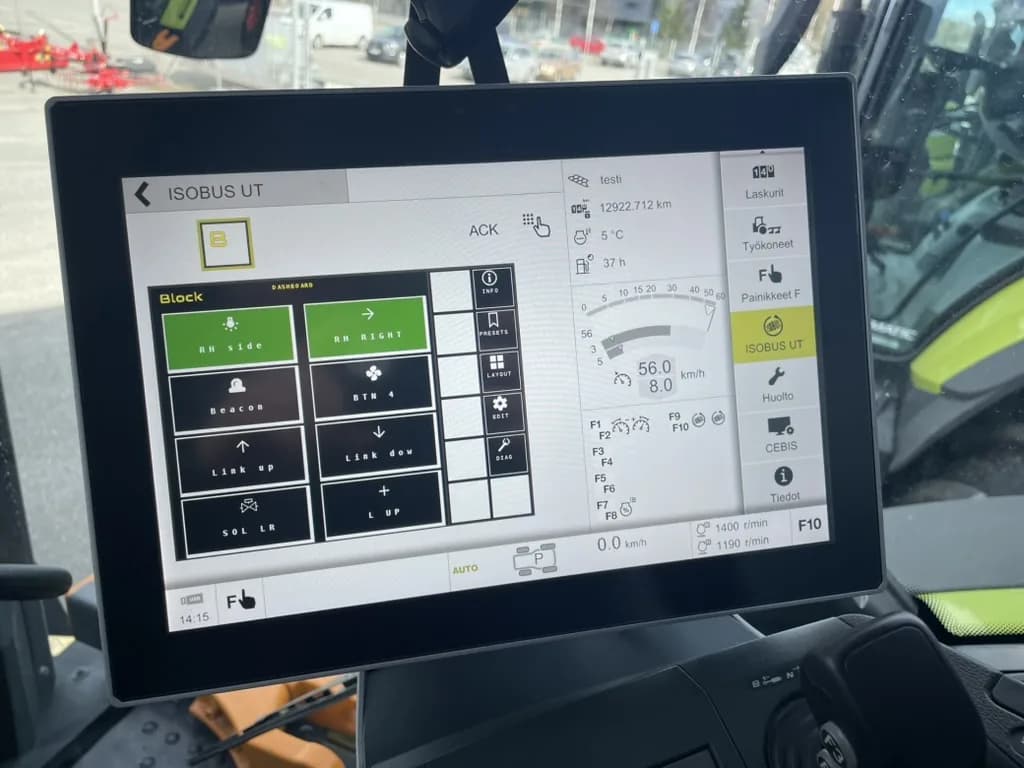
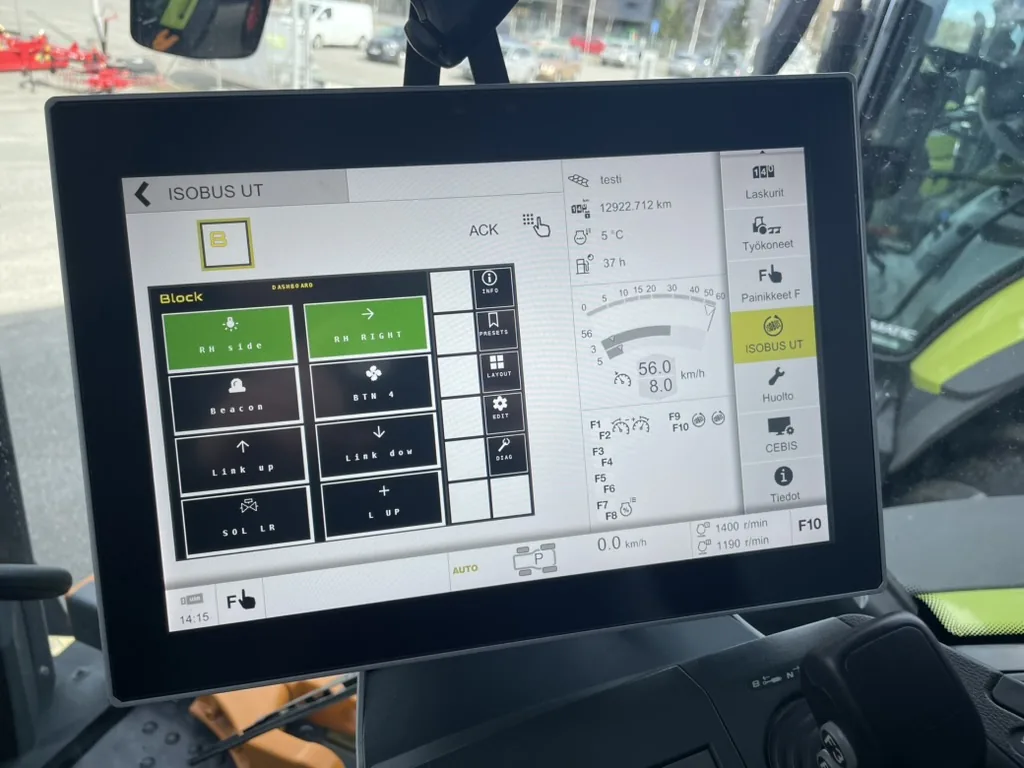
In short: The Virtual Terminal is the screen in the cab that draws whatever interface an implement sends it. The implement uploads an object pool (its screens, soft keys, graphics and alarms), and the VT renders it and caches it for the next connection. That is why any ISOBUS implement can show its controls on any ISOBUS tractor, whatever the brand.
The Virtual Terminal is the part of ISOBUS operators interact with most directly. It's the screen in your tractor's cab that shows implement controls and status information. Any implement can display its interface on any tractor's VT, regardless of manufacturer. That includes implements that were retrofitted with ISOBUS control rather than shipping ISOBUS-ready from the factory.
Here's how it works, from the underlying protocol to day-to-day usage.
Looking for how to use a VT to control an implement in practice? See ISOBUS Terminal Solutions, or the full guide on controlling implements over ISOBUS: VT, AUX-N buttons, and the relay layer working together.
What Is a Virtual Terminal?
In ISOBUS terminology, a Virtual Terminal (VT) is a display device in the tractor that can render graphical user interfaces sent to it by connected implements. The word "virtual" is key: the VT doesn't have pre-programmed screens for specific implements. Instead, it acts as a general-purpose display that renders whatever interface an implement sends to it.
A typical proprietary display has fixed screens built into its firmware. The ISOBUS Virtual Terminal renders whatever object pool the connected implement sends, with no pre-programmed screens for specific implements. Any ISOBUS implement can show its interface on any ISOBUS tractor's display, without the tractor manufacturer needing to know anything about the implement in advance.
How VT Communication Works
The communication between an implement and the Virtual Terminal follows a defined sequence:
Step 1: Address Claiming
When the implement powers up on the ISOBUS network, it first claims a unique address. Every device on the CAN bus needs its own address (0-253) to communicate. This happens automatically through the J1939 address claiming procedure.
Step 2: Working Set Announcement
The implement announces itself as a "working set": a group of one or more ECUs that together form a logical implement. A simple device like a relay module is a single-ECU working set. A complex implement like a precision sprayer might have multiple ECUs (main controller, section controller, rate controller) that together form one working set.
Step 3: Object Pool Upload
This is the core of the VT system. The implement uploads its object pool, a complete description of its user interface, to the Virtual Terminal. The object pool contains all the screen layouts, buttons, graphics, text labels, and interactive elements that make up the implement's interface.
The VT stores this object pool in memory. If the same implement connects again later, the VT can use the cached pool instead of requiring a fresh upload, which speeds up the connection process.
Step 4: Active Interaction
Once the pool is loaded, the operator can interact with the implement through the VT. Button presses on the VT screen are sent to the implement as messages. The implement sends back status updates that the VT displays: values changing, indicators updating, alarms triggering.
This communication is continuous. The VT and implement exchange messages in real time as the operator works.
Understanding the Object Pool
The object pool is what makes the Virtual Terminal system work. It's a structured data package that describes every element of the implement's user interface.
What's Inside an Object Pool
An object pool contains objects: individual UI elements, each identified by a unique numeric ID. The main object types are:
Data Masks (Main Screens)
A data mask is a full-screen layout, like a page in an application. An implement can have multiple data masks for different views (main status, configuration, diagnostics). The operator navigates between data masks using on-screen buttons.
Each data mask defines the arrangement of child objects: where numbers are displayed, where buttons appear, where graphics are positioned.
Alarm Masks (Warning Screens)
Alarm masks are special screens that pop up when the implement needs to warn the operator. They take priority over normal data masks and typically require the operator to acknowledge them before returning to normal operation.
Alarms can have different priority levels:
- Critical: Requires immediate attention (e.g., safety-related)
- Warning: Important but not immediately dangerous
- Information: Status notifications
Soft Key Masks
Soft keys are the buttons that appear along the edges of the VT screen. They change depending on which data mask is active. The soft key mask defines which buttons appear and what they do for each screen.
Soft keys are how most implement control happens on the VT. Each key can trigger an action (like activating a relay) or navigate to a different screen.
Input and Output Objects
These are the interactive and display elements within masks:
| Object Type | Purpose | Example |
|---|---|---|
| Output Number | Display a numeric value | Current temperature, relay status |
| Output String | Display text | Mode name, error messages |
| Input Number | Operator enters a number | Set a threshold value |
| Input Boolean | On/off toggle | Enable/disable a function |
| Input List | Select from options | Choose operating mode |
| Meter | Graphical value display | Linear or arc meter |
| Button | Trigger an action | Activate relay, change screen |
| Container | Group objects together | Panel of related controls |
Graphics and Pictures
Object pools can include bitmap graphics for visual elements: icons, backgrounds, diagrams, and brand logos. These graphics are encoded in the pool data and rendered by the VT.
Graphics must be designed for the VT's capabilities (color depth, resolution). This is one area where VT version compatibility matters most.
Object Pointers and References
Objects can reference other objects, creating a hierarchy. A data mask contains buttons, each button contains a picture and a text label, and so on. This hierarchical structure allows complex interfaces to be built from simple, reusable components.
How the VT Renders the Pool
When the VT receives an object pool, it:
- Parses all objects and their relationships
- Scales graphics to fit its screen resolution
- Maps colors to its available palette
- Renders the first data mask as the initial screen
- Sets up soft keys according to the active mask's soft key mask
The VT handles all the rendering details. The implement doesn't need to know the VT's screen resolution or color capabilities. It provides its ideal layout and the VT adapts.
Object Pool Size and Memory
Object pools vary in size from a few kilobytes (simple interfaces) to several hundred kilobytes (complex implements with many graphics). The VT has a limited amount of memory for storing pools.
When the VT's pool memory is full, it may need to discard older pools to make room for new ones. This means those implements will need to re-upload their pools next time they connect, a process that can take 10-30 seconds depending on pool size and CAN bus speed.
VT Versions and Their Capabilities
The Virtual Terminal standard, ISO 11783 Part 6, has evolved through several versions, each adding capabilities:
VT Version 3
The original widely-deployed version.
- Screen size: Typically 200x200 pixels
- Colors: 16 colors (4-bit)
- Features: Basic data masks, soft keys, simple input/output objects
- Typical era: 2005-2012 tractors
VT 3 is functional but limited. Small screen size means interfaces need to be simple. The 16-color palette restricts graphical design options.
VT Version 4
A significant improvement that became the mainstream standard.
- Screen size: Commonly 480x480 pixels, some larger
- Colors: 256 colors (8-bit)
- Features: Improved graphics, better input handling, enhanced button objects
- Typical era: 2010-2018 tractors
VT 4 is the version most existing implements target. The 480x480 resolution allows for reasonably detailed interfaces, and 256 colors support clearer graphics and visual indicators.
VT Version 5
Refinements building on VT 4.
- Screen size: 480x480 and larger
- Colors: 256+ colors
- Features: Extended input objects, improved list handling, better key objects
- Typical era: 2016-2022 tractors
VT 5 added incremental improvements. Most VT 4 object pools display correctly on VT 5 without modification.
VT Version 6
The latest version with significant advancements.
- Screen size: 800x600 and larger
- Colors: 65,536 colors (16-bit)
- Features: Window masking, graphic context objects, auxiliary control version 2, advanced scaling
- Typical era: 2020+ tractors
VT 6 supports substantially richer interfaces with true-color-like graphics and larger screens. It also introduces window masking, which allows more flexible screen layouts.
Version Compatibility Matrix
| Implement Pool Version | VT 3 Tractor | VT 4 Tractor | VT 5 Tractor | VT 6 Tractor |
|---|---|---|---|---|
| Designed for VT 3 | Works | Works | Works | Works |
| Designed for VT 4 | Limited* | Works | Works | Works |
| Designed for VT 5 | Limited* | Limited* | Works | Works |
| Designed for VT 6 | Limited* | Limited* | Limited* | Works |
"Limited" means the VT will attempt to display the interface, but features or graphics designed for the newer version may not render correctly. Well-designed implements include fallback pools for older VT versions.
VT version compatibility: which version do I need?
You do not pick one. The terminal has a VT version, and so does each implement's object pool. When they connect, the implement asks the terminal which version it runs, and the pair works at the lower of the two. A VT 4 implement on a VT 6 terminal runs as VT 4. A VT 6 implement on a VT 4 terminal can only use what VT 4 offers.
Newer implements usually carry a fallback pool for older terminals, so most of the time nobody notices. When it goes wrong, you see it:
- The implement loads with missing graphics or blank buttons.
- Screens or functions you know from another tractor are missing.
- The terminal rejects the object pool and the implement never appears. The ISOBUS not working checklist covers that case step by step.
To check, open the terminal's ISOBUS or VT info screen. It lists the VT version the terminal supports. The implement's version is in its manual, or ask the dealer. If the implement needs a newer version than the terminal has, ask the implement maker for a software version that matches, or ask the tractor dealer whether the terminal has a software update.
How Operators Interact With the VT
Navigating Between Working Sets
When multiple ISOBUS implements are connected (a front and rear implement pair is the common case), the VT displays one at a time. Operators switch between implements using the "working set selector", typically a button or menu area on the VT screen that shows icons for each connected implement.
Each working set (implement) has its own set of screens, soft keys, and alarm handling. Switching between working sets is like switching between applications.
Using Soft Keys
Soft keys are the primary control mechanism on the VT. They're typically arranged along the right side and/or bottom of the screen. The implement defines what each soft key does for each screen.
Common soft key functions:
- Toggle outputs: Turn a relay, light, or function on/off
- Navigate: Switch between data masks (screens)
- Set values: Enter configuration parameters
- Acknowledge alarms: Clear warning messages
Soft key layouts change when you switch screens, so the same physical button position can have different functions depending on which data mask is active. Visual labels on each soft key show the current function.
Receiving Alarms and Status
When an implement generates an alarm (fault condition, status change, or warning), the VT automatically displays the alarm mask, interrupting the normal view. The operator reads the alarm information and typically presses an acknowledge button to dismiss it.
Some alarms are informational (can be dismissed immediately), while critical alarms may require the operator to take action before they can be cleared.
Changing Values and Settings
When the implement provides input fields, operators can change values using the VT's input methods:
- Number entry: Use on-screen keypad or increment/decrement buttons
- List selection: Scroll through options and select one
- Boolean toggle: Simple on/off
The exact input method depends on the VT hardware. Some use touchscreen interaction, others use physical buttons adjacent to the screen.
Screen Sharing Between Implements
The VT can only display one implement's interface at a time, but multiple implements can be connected simultaneously. This creates some practical considerations:
Working Set Priority
Some implementations allow working sets to request priority (for alarm display), but the operator generally has full control over which working set's interface they're viewing.
Background Operation
When an implement's interface is not visible on the VT (because the operator is viewing a different implement), the implement continues operating. VT visibility is for monitoring and configuration, not a prerequisite for the implement to work. AUX-N button assignments stay active regardless of which working set is displayed. Which terminals support AUX-N is in the universal ISOBUS terminals comparison.
Multiple VT Displays
Some tractors have more than one display capable of acting as a VT. In this case, different implements can be shown on different displays simultaneously. The standard supports this through VT instance management.
Object Pool Design Considerations
Designing for Multiple VT Versions
Good implement design includes object pools optimized for different VT versions. During the initial connection, the implement queries the VT for its capabilities (version, screen size, color depth) and uploads the appropriate pool.
This means the same implement can provide:
- A simple, 200x200 interface for VT 3 tractors
- A detailed, 480x480 interface for VT 4/5 tractors
- A full-featured, 800x600 interface for VT 6 tractors
Mask Size and Layout
The data mask size defines the available area for the implement's interface. Standard mask sizes (in the "designator" dimension) include:
| VT Data Mask Size | Typical Resolution |
|---|---|
| 200x200 | VT 3 baseline |
| 480x480 | VT 4/5 common |
| 600x600 | VT 5/6 enhanced |
| 800x600 | VT 6 widescreen |
The VT scales the implement's interface to fit its actual screen dimensions. An implement designed for 480x480 will be scaled up or down to match the VT's physical display area.
Color Management
Different VT versions support different color depths. Object pools need to include graphics that work within the VT's color palette:
- VT 3: 16 colors (use only the standard ISOBUS color table)
- VT 4/5: 256 colors (ISOBUS-defined palette)
- VT 6: 65,536 colors (free color selection)
When an implement designed for 256 colors connects to a VT 3 terminal with only 16 colors, the VT maps colors to their nearest equivalents. This usually works but can make graphics look washed out or lose detail.
Implement Display in Practice: ISOBUS Block
ISOBUS Block is a real-world example of object pools, soft keys, and AUX-N working together. The module uploads its pool automatically, adapts to your VT version, and shows all 8 relay channels (CH1–CH8, each flagged TOG or MOM) on the main screen, with no submenus for basic toggling. If your tractor has no VT at all, retrofitting an ISOBUS terminal covers the options. For the practical wiring and configuration walkthrough (connecting any 12V or 24V load and assigning it to an armrest button), see Control Any Device from Your ISOBUS Terminal. The module is what people mean by an auxiliary output module: ISOBUS in, switched relay outputs out.
Frequently Asked Questions
What is an ISOBUS Virtual Terminal?
A Virtual Terminal (VT) is the display in an ISOBUS-equipped tractor that renders user interfaces for connected implements. Unlike a proprietary display, the VT is a general-purpose screen that can show any implement's interface by receiving and displaying its object pool data. This is what enables cross-brand compatibility in ISOBUS.
Which VT version do I need?
The version your implement's object pool is built for, or newer. Terminal and implement run at the lower of their two versions, and most newer implements carry a fallback pool for older terminals. If an implement loads with missing graphics or not at all, compare the version on the terminal's info screen with the implement's documentation.
What is an object pool in ISOBUS?
An object pool is the complete description of an implement's user interface: screens, buttons, graphics, text, input fields, and their layout. The implement uploads this data to the VT, which renders it on screen. The VT caches the pool in memory so it doesn't need to be re-uploaded every connection.
How long does it take for an implement to appear on the VT?
First-time connections typically take 10-30 seconds while the object pool uploads over the CAN bus. Subsequent connections are faster because the VT uses its cached copy of the pool. Complex implements with large graphics take longer than simple devices.
Can I see two implements on the VT at the same time?
On a single VT display, you can only view one implement's interface at a time. You switch between implements using the working set selector. However, some tractors have multiple displays that can each act as a VT, allowing simultaneous viewing. AUX-N button assignments work for all implements regardless of which one is displayed.
What happens to the implement when I switch to a different working set?
The implement continues operating normally. Switching the VT display only changes what you see on screen. All AUX-N button assignments remain active, and the implement maintains its current state. You just won't see its status updates until you switch back to its working set.
What is a soft key on the ISOBUS Virtual Terminal?
Soft keys are programmable buttons displayed on the VT screen, typically along the right side and/or bottom. Each implement defines what its soft keys do for each screen. Pressing a soft key sends a command to the implement. The function of each soft key changes based on which screen (data mask) is currently active.
Why do my implement graphics look different on different tractors?
Different tractors have VTs with different screen resolutions, sizes, and color depths. The VT scales the implement's interface to fit its display and maps colors to its available palette. Higher-resolution VTs with more colors will show implement graphics at better quality than older, lower-resolution VTs.
What is a data mask?
A data mask is a full-screen layout in an ISOBUS object pool, essentially a "page" of the implement's interface. An implement can have multiple data masks for different views (main screen, settings, diagnostics). The operator navigates between data masks using soft keys or navigation buttons defined by the implement.
What is an alarm mask?
An alarm mask is a special VT screen that appears automatically when the implement detects a warning or fault condition. It interrupts the current view to alert the operator. Alarms have priority levels (critical, warning, informational) and typically require acknowledgment before the operator returns to the normal display.
Related Resources
- ISOBUS Compatibility Guide: Check if your tractor supports the features you need
- ISOBUS AUX-N Complete Guide: How to use joystick and button assignment
- ISOBUS Troubleshooting Guide: Solving VT connection issues and pool problems
- ISOBUS Connector Pinout Guide: Physical wiring reference
Need relay outputs on your tractor's Virtual Terminal? ISOBUS Block gives you 8 relay channels on-screen, with automatic pool upload and AUX-N support. Setup and configuration questions are covered on the FAQ page. See the docs or contact us.